Workflow Step Options
Explained
This
document will explain all the available setting in the Options screen of a
workflow step.
 FIGURE
1
FIGURE
1
Description:
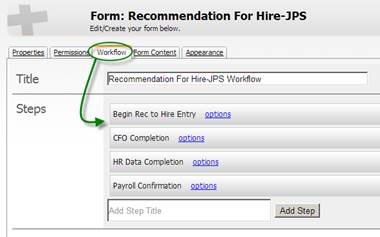
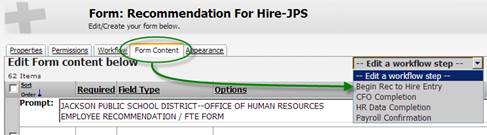
Title
This is a text box, and anything typed and saved in here will show up in the
following places:
Action
This
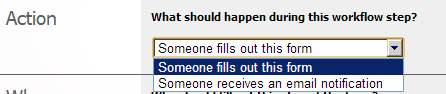
area defines what type of step the current workflow step is:
A “Fills out this form” Step, which requires someone to provide or review
information and hit a Submit/Approve/Deny button before the form can move on to
the next step. The workflow will remain on this step type until it is either
Submit, Approve, or Deny is clicked.
A
Notification Step means that an
email will be sent to a specified person (next section), and then the workflow
will move to the next “Fills out this form” Step and wait. If this is the last
step, the form will send the email and complete so a printable version of the
form and all the steps will be available.
NOTE:
Fills out this form has ALL of the sections depicted in Figure 1 above, a
Notification Step only has Title, Actions, Who, Notification Options.
Who

This
step determines who is responsible/the recipient of this step in the workflow.
a) The Person who started this form
Select this option if the person initially creating the form (either on the
Applicant or Employee’s Materials on file screen on through the My Account à My Forms path)
will need to provide information.
NOTE: On the first step, this selection does not have the Notification Options
(next area) on it because it is assumed the person will start the form when he
or she is ready to provide the information.
b) The applicant associated/attached to this form
Select
this option if the applicant (associate by the creation menu or by going into
the Materials on File screen and creating the form) need to provide information
c) The employee associated/attached to this form
NOTE:
this option is only available for those clients using AppliTrack HR Files.
Select this option if the employee (associate by the creation menu or by
going into the Materials on File screen and creating the form) need to provide
information
d) Employee(s) in specific roles, locations, or
departments
NOTE:
this option is only available for those clients using AppliTrack HR Files.
If a specific employee does not have to fill out the form, but anyone sharing
the same role (I.E. HR Employee) can fill out the form, then the drop downs can
be selected so that the form is accessible by anyone who matches the criteria.
The form step does not/cannot be filled out by ALL of the employees defined, just
the first person who completes the form.
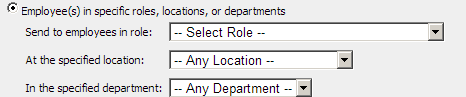
NOTE: for this selection ROLE is required, Location and Department are optional
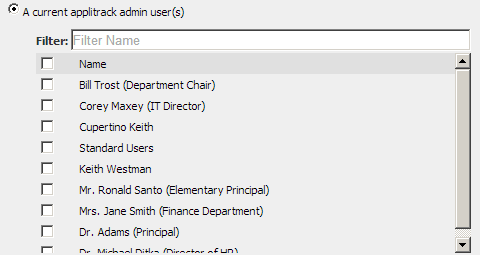
e) A current AppliTrack admin user(s)
This
selection allows one or more users to be responsible for this step. The form
step does not/cannot be filled out by ALL of the employees defined, just the
first person who completes the form.
f) Some other email
This
allows for another email, provided in the box, to be responsible for this step
in the workflow.

g) Email provided in form field
This
selection allows for an earlier step in the workflow to choose an email that
will receive the current step in the workflow. Selecting this option will change
the screen and provide you a dropdown of all the questions which require an
answer.

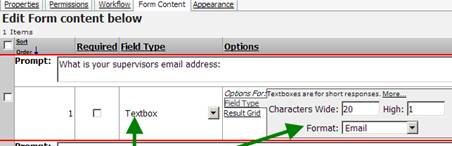
We suggest that the question posed to an earlier step in the workflow be setup
as follows on the Form Content tab:
NOTE: We can
assist you in setting up dropdowns with names that translate to emails for
assigning current steps as this avoids mistypes or those answering who may not
know an email.
h) Let the user choose when sending the form
This option
is only available for the first step in a form, and it results in a screen like
the one below if the person initially creating
the form (either on the Applicant or Employee’s Materials on file screen on through
the My Account à
My Forms path) needs to decide who this form can go to.