
Working With an Applicant List
After searching for applicants using any method, you will be presented with a list of applicants in what we call the "applicant grid." Use the list to open application files, sort the list or otherwise work with your applications.
Here's how:
1) Click the Open link to open an applicant's application.
2) Resort the list by any visible column by clicking the column header. All lists are sorted by Date Completed by default, leaving the most recently submitted application on top.
3) If desired, click the Download To Excel list to work with the applicant list offline or to print it. See the following Help Topic for more on printing.
Use the options to the left to further customize and work with the list of applicants.
 Filter Applicants:
Click the Filter Applicants icon.
Filter Applicants:
Click the Filter Applicants icon.
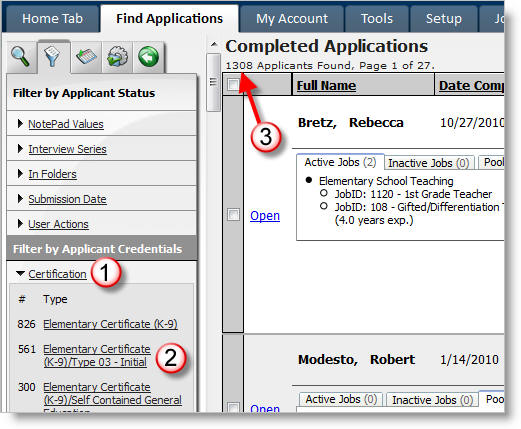 You can then click a 1) category
to see 2) the number of applicant with additional criteria out of 3) the number
of applicants you are currently looking at (484 in the example.)
You can then click a 1) category
to see 2) the number of applicant with additional criteria out of 3) the number
of applicants you are currently looking at (484 in the example.)
 Add/Remove Columns:
Click the field selector icon. You should then see a list of fields. Check a
field to add the field as a column to the list.
Add/Remove Columns:
Click the field selector icon. You should then see a list of fields. Check a
field to add the field as a column to the list.
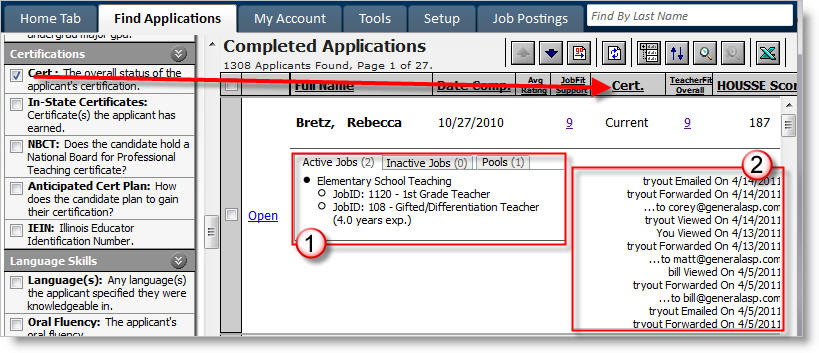
In the example below, the Cert column is selected. Un-check it to remove the
column from the list. Two fields all the way at the bottom of the list are: 1)
Positions Desired and 2) Action Log. Remove both fields to create a single-line
record, excellent for exporting and Mail Merging.
 Batch Actions & Tools:
Click the Gear w/ checkbox icon. You will then see a list of actions.
Batch Actions & Tools:
Click the Gear w/ checkbox icon. You will then see a list of actions.
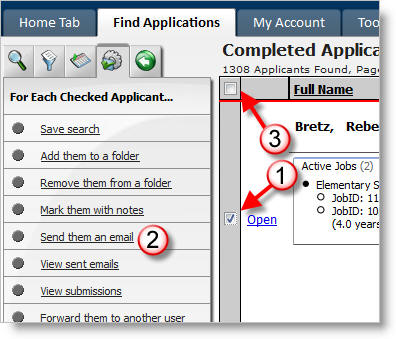
1) Place a checkbox in a candidate's record.
2) Click an action to affect each checked applicant.
3) The uppermost checkbox checks and un-checks all records.
 Filter History: Use this
to undo a Filter Applicants link.
Filter History: Use this
to undo a Filter Applicants link.