Printing lists of candidates
Printing lists of candidates is best accomplished by first downloading the lists to Excel and printing from there. You'll find that you have much more control of the output.
Here's how:
1) Bring a list of candidates on-screen. Use any method to do this. You can
run a search or use Find Applications -> By [Something].
Tip: If you want to print additional columns, (for example, address or phone) or
remove some columns (for example the positions desired) use the Add/Remove Columns feature
to do so now. See the following help topic for
more on Add/Remove columns.
2) Re-sort the list if desired. The sort order will be retained when you download to Excel. Mutli-line records can be difficult to sort in Excel, so pre-sorting may be necessary.
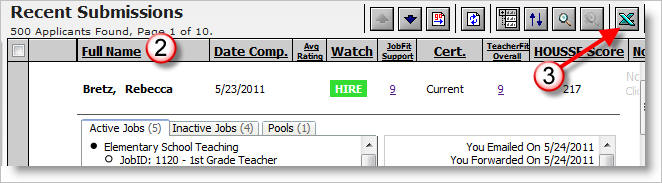
3) When ready, click the "Download to Excel" button.
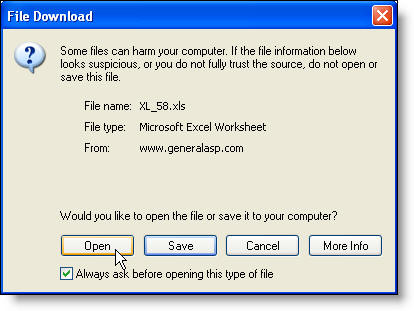
4) Open or Save the download as desired.
5) Use Excel to format your print as desired. You can reduce or change the font, highlight and bold records just like any other worksheet.
6) If working with "Multi-Line Records", see the following tip.
Tip: To prevent multi-line records from breaking across pages, follow the
directions below.
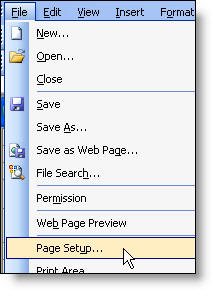
6a) Go to Page Setup within Excel and select landscape or portrait mode as desired. Click OK when finished.
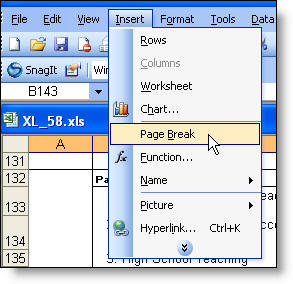
6b) Excel will then display dashed lines where page breaks will occur. To prevent a break in the middle of a record, insert a Page Break at the start of the applicant record. Highlight the row where you would like the break to occur and select Insert -> Page Break from the menu.
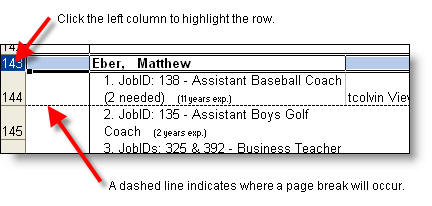
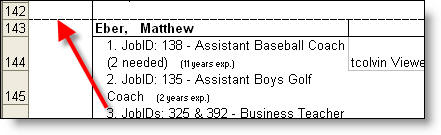
When finished, you'll see the page break is now above the record.
Repeat this as necessary for the rest of the records in the download.